Web Portal
Overview
Our secure web portal provides a user-friendly interface for uploading, managing, and retrieving analysis reports. This guide walks you through the main workflows, illustrated with screenshots to help you get started quickly.
Key Benefits
- Intuitive Interface: Clean, responsive design for desktop and tablet.
- Secure Access: Enforced via OAuth2 with MFA options.
- Fast Uploads: Drag‑and‑drop upload of DICOM studies.
- Real‑Time Status: Live progress indicators and notifications.
- Comprehensive Reporting: View and download analysis results in multiple formats.
Getting Started
-
Access the Portal
Sign into the portal using your designated credentials. You can also update your password using the login dialog. After logging in, enter your MFA code or setup MFA using the guide displayed after logging in for the first time.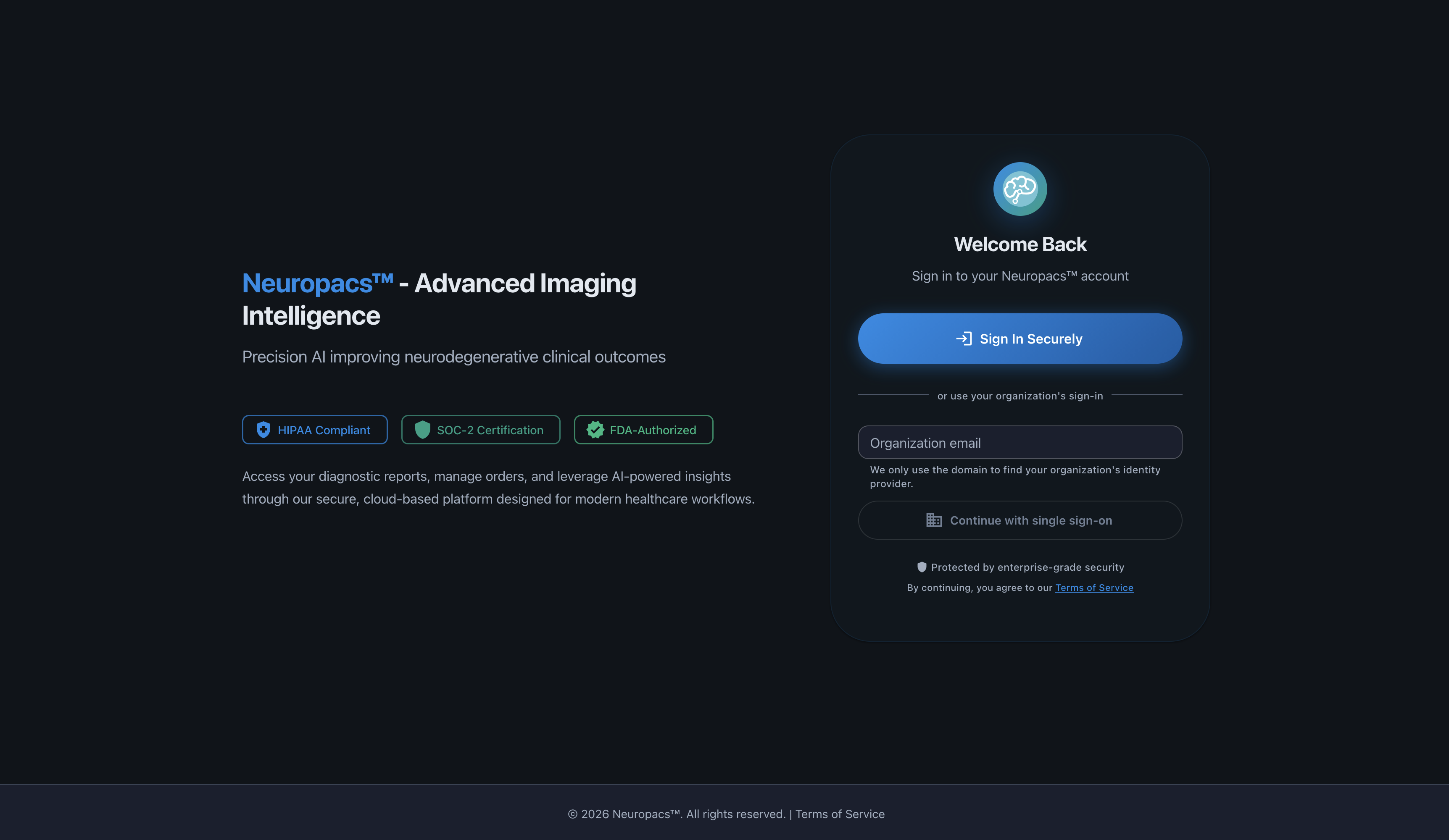
-
Landing Page
The landing page displays metrics on your individual and group orders. You can also view recent activity to keep up-to-date with your orders.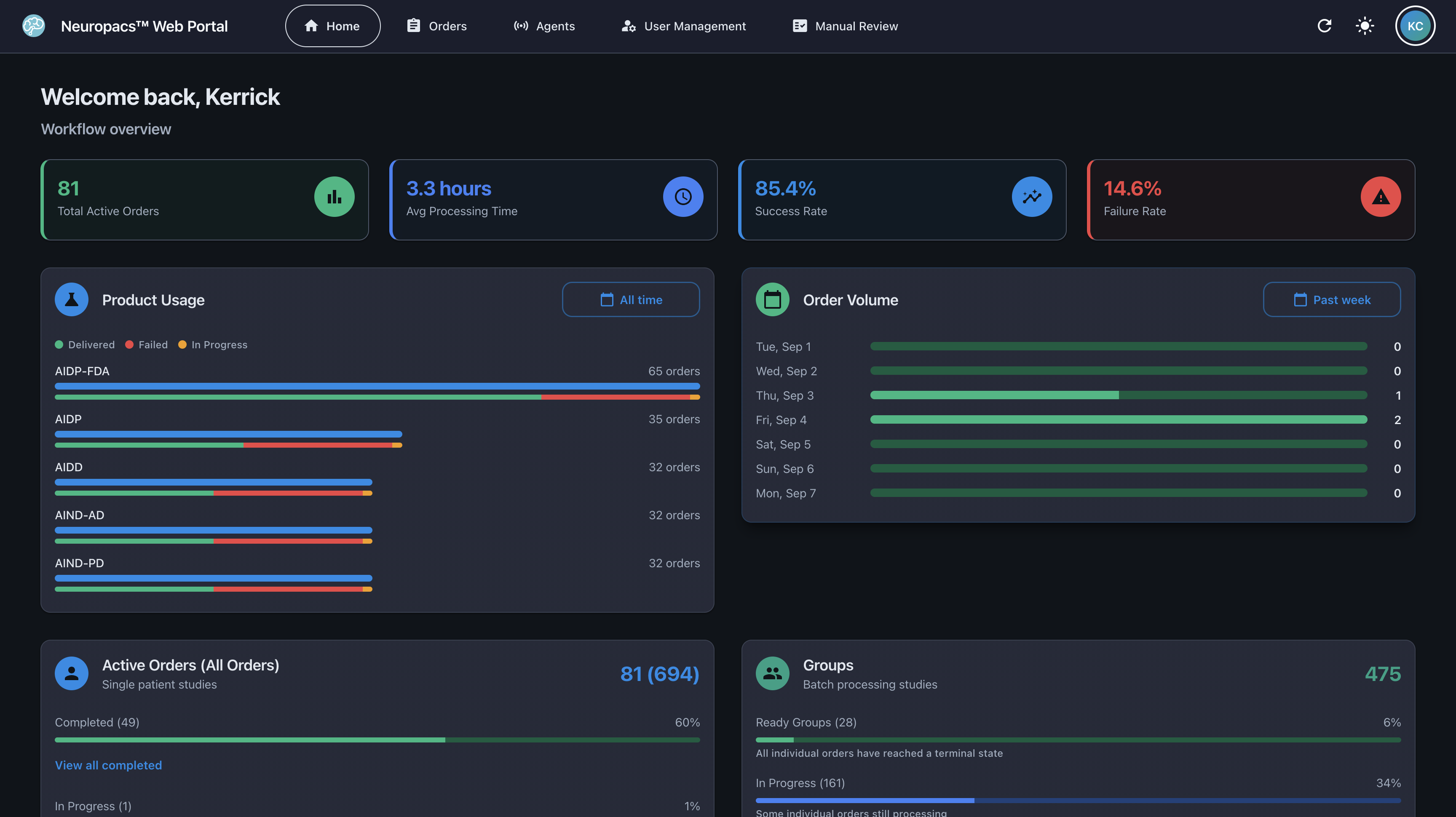
-
Order Management Page
The order management page allows you to create new orders, view details on existing orders, and retrieve reports.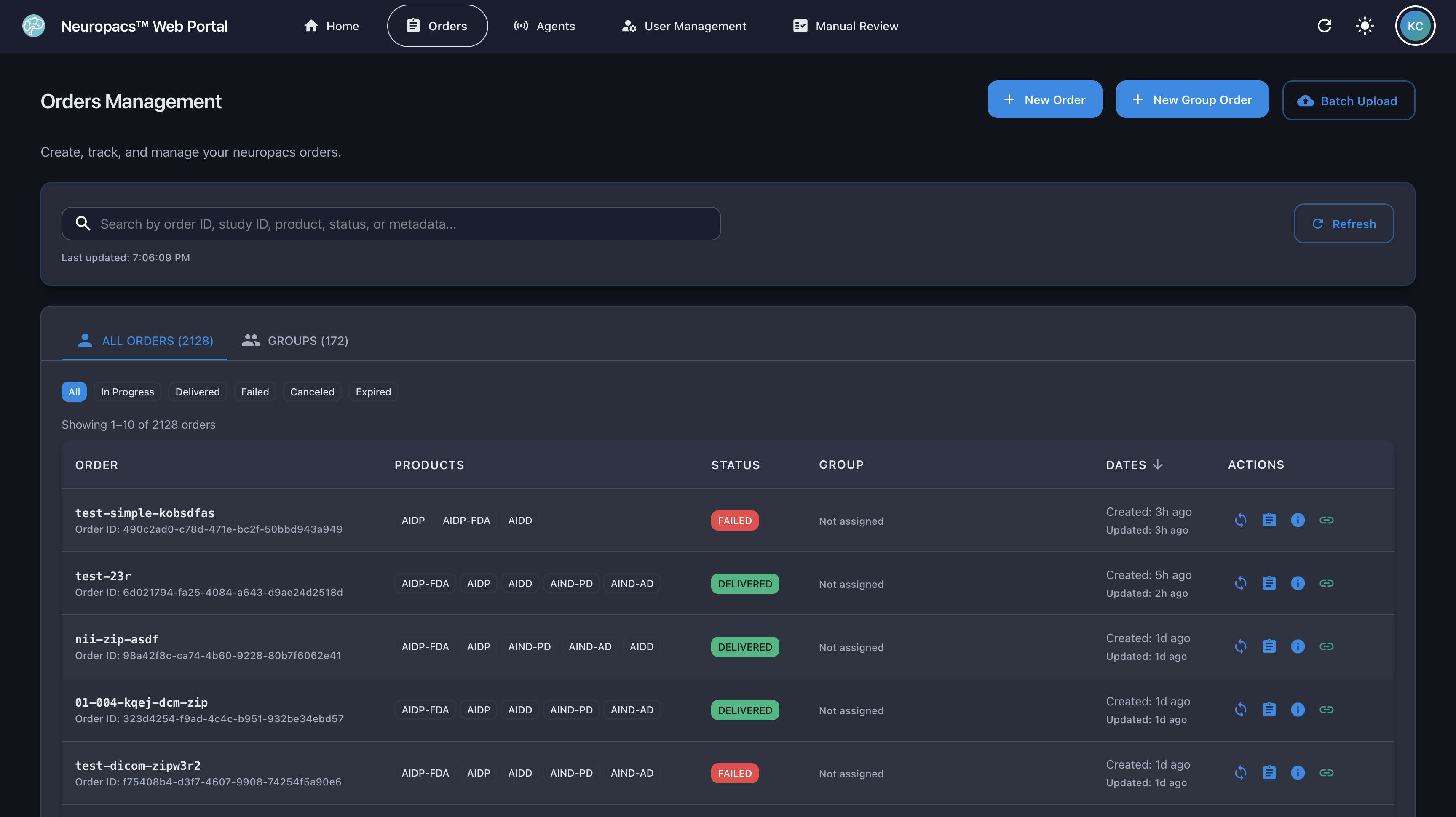
-
Agent Management Page
For administrative users, the Agent management page allows users to view all Neuropacs Agents currently in operation. You can view metrics on existing agents including order statuses, error messages, CPU/Memory/Disk usage, and other basic metrics. The information here depends on heartbeat permissions set on the individual agents.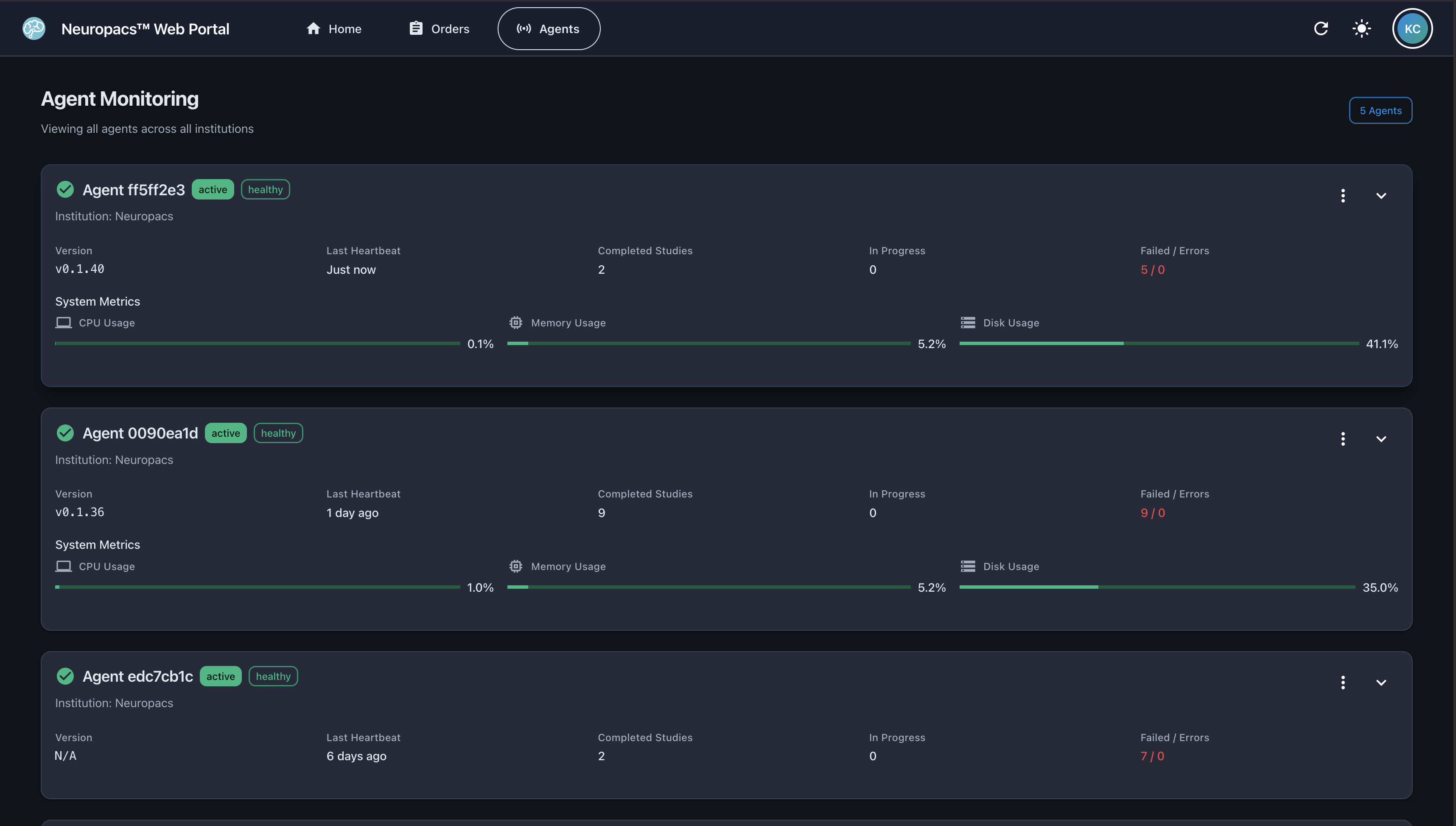
-
Profile Page
Open your Profile to view details on the user profile. This includes account information, permissions, and session information.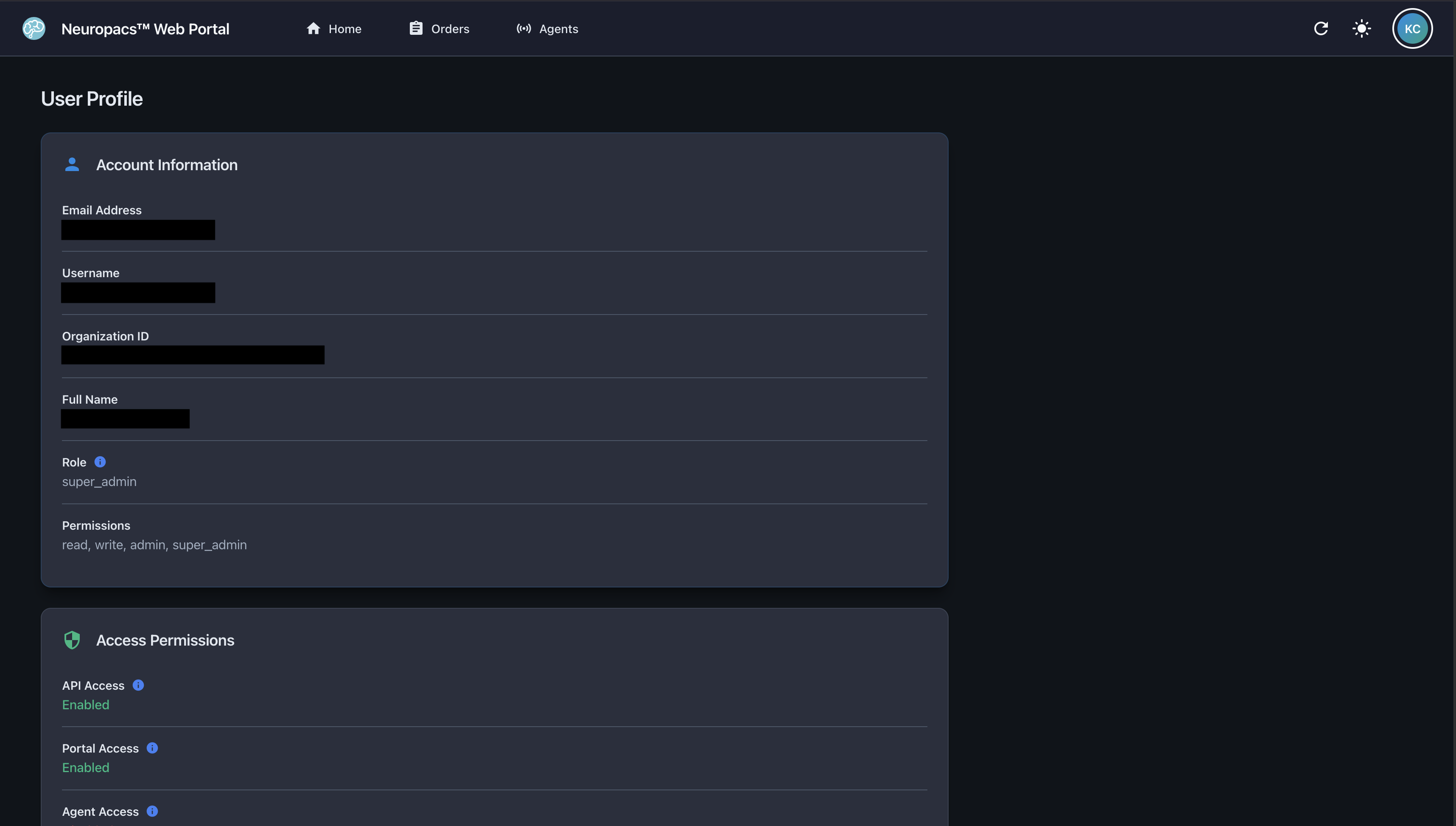
Troubleshooting
-
Upload Errors
- Check network connectivity and retry.
- Contact support if issues persist.
-
Authentication Issues
- Authentication sessions expire after 1 hour.
- Contact support if you’re locked out.
Tips & Best Practices
- The information displayed in the web portal depends on the permission level of the user. To change your permission level, contact your administrator or Neuropacs support.
- Use a wired connection for large uploads.
- Regularly review your orders to stay on top of processing.
- Use the web portal to reset password and manage users, agents, and processing jobs within your organization.
- View the Technical Specifications before uploading to review imaging requirements.
- Do not close or leave the web portal during an active upload.
Releases
Privacy Controls and Device Information
v1.0.8ReleaseThe Neuropacs Web Portal now provides privacy controls for sensitive information and easier access to product device information.
Privacy Controls and Device Information
The Neuropacs Web Portal now provides privacy controls for sensitive information and easier access to product device information.
- Sensitive information, including study identifiers, patient metadata, group details, and report filenames, is now blurred by default. Reveal individual values or use a confirmation-based Reveal all control. Reloading the page hides this information again.
- Portal notifications no longer include study or order identifiers. Report previews use neutral titles, while downloaded reports retain their original filenames.
- A new About menu provides each product’s device description, FDA Unique Device Identifier (UDI), and software version, where available.
- Product selection lists now display device descriptions and UDIs, where available, to help users identify the selected product.
Report Viewing Improvements
v1.0.7ReleaseThe Neuropacs Web Portal now supports inline report previews and QC bypass controls.
Report Viewing Improvements
The Neuropacs Web Portal now supports inline report previews and QC bypass controls.
- Preview PDF, PNG, CSV, JSON, XML, and text reports directly in the portal, with options to download or open reports in a new tab. For studies that fail QC, download QC findings and acquisition details individually or together as a ZIP archive.
- Authorized users can request a QC bypass for eligible orders from the portal, including studies already rejected by QC. Required manual review remains enforced, and bypass details are visible in the order record.
- Improved manual review tables with scrollable lists and fixed column headers.
- Updated web portal dependencies to address a security vulnerability.
Batch Uploads and Streamlined Account Access
v1.0.6ReleaseThe Neuropacs Web Portal now supports batch study uploads, direct NIfTI submissions, and expanded sign-in and user management options.
Batch Uploads and Streamlined Account Access
The Neuropacs Web Portal now supports batch study uploads, direct NIfTI submissions, and expanded sign-in and user management options.
- Added batch uploads for submitting multiple studies in one session, with improved progress tracking, validation feedback, and keyboard accessibility.
- Added direct NIfTI dataset uploads with folder selection and validation of required imaging and supporting files.
- Improved upload preparation to reduce browser memory use when packaging study archives.
- Updated product selection to reflect current product information and organization access, with clearer feedback when product options are unavailable.
- Added management of organization single sign-on (SSO) providers and automatic sign-in routing based on email domain.
- Added temporary passwords for new Web Portal users that expire after seven days if unused and require a reset at first sign-in, with clearer guidance in User Management.
Enhanced Dashboard Analytics
v1.0.5ReleaseThe Neuropacs Web Portal now provides faster dashboard analytics, clearer order tracking, and in-app PDF report previewing.
Enhanced Dashboard Analytics
The Neuropacs Web Portal now provides faster dashboard analytics, clearer order tracking, and in-app PDF report previewing.
- Added server-side dashboard summary metrics through /v1/dashboard-summary.
- Improved Home dashboard analytics, product usage, order volume, recent activity, and expiring-order visibility.
- Improved Orders page filtering for active, completed, failed, expired, and processing states.
- Added PDF.js-based in-app report preview with zoom, page navigation, retry, download, and external-open fallback.
- Updated Web Portal runtime and CI support for Node 24.
- Added activity-event database support for recent activity tracking.
- Improved API schema accuracy and dashboard error handling.
Web Portal Initial Release
v1.0.0ReleaseThe Neuropacs Web Portal became available for secure browser-based uploads, study management, and report retrieval.
Web Portal Initial Release
The Web Portal now enables a browser-based workflow for managing imaging orders and analysis reports.
- Added secure upload support for DICOM studies.
- Added order management and report retrieval workflows.
- Added a user-facing interface for manual uploads and case tracking.
Last updated: September 22, 2026